




Set Up Touchscreen Software for Trade Show Booths
Last updated: 12 May 2026
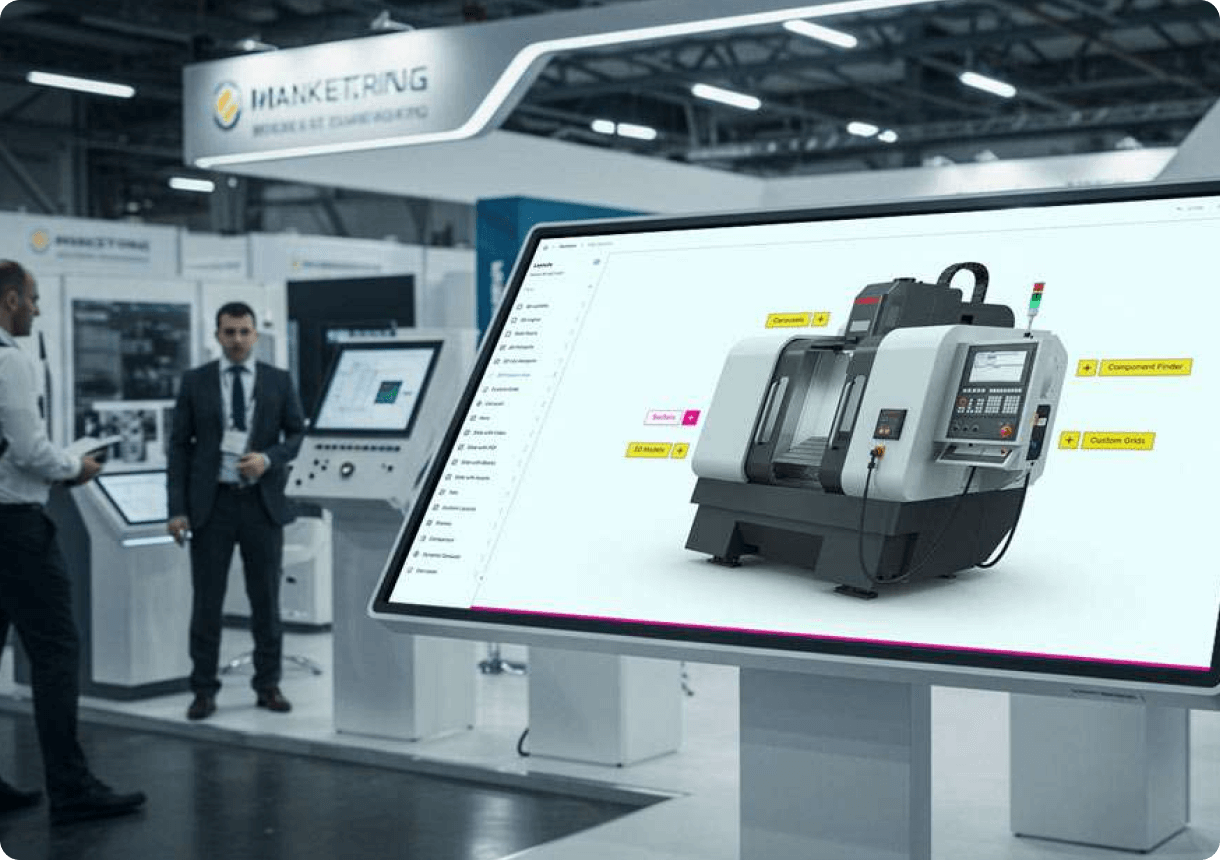
Most exhibitors spend weeks preparing for a trade show, only to stand behind a booth with a static banner and hope people stop by, yet booths with interactive touchscreens draw 35% more visitors compared to traditional setups. If you’re exhibiting this year, you already know the pressure, that sinking feeling when foot traffic slows or when leads feel cold and unqualified. The good news, interactive displays can increase booth dwell time by 30–40% and lead capture by up to 35%, transforming passive lookers into engaged prospects in minutes. In this guide, I’ll walk you through the entire process of setting up touchscreen software for your trade show booth, from hardware selection to live deployment, with practical steps you can execute immediately. By the end, you’ll understand exactly how to deliver the tech-forward experience that 68% of trade show attendees now expect.
Key Takeaways
- Booths with interactive touchscreens draw 35% more visitors and increase dwell time by 30–40% compared to static displays.
- The most effective touchscreen software for trade shows requires zero coding, works offline, and can be deployed in hours rather than weeks.
- 81% of trade show attendees remember booths featuring interactive touchscreens, making them a critical tool for brand recall and lead generation.
- Your sales team gains a 5 to 12 minute window per visitor to start meaningful conversations, compared to 45 seconds with passive displays.
Choose the Right Touchscreen Hardware and Size
Before you select software, you need to decide on the physical display. Trade show booth spaces vary wildly, from a 10×10 corner to a sprawling island setup. The right touchscreen size balances visibility from across the booth floor with the ability to fit your booth footprint without dominating the entire space. I’ve seen 43-inch screens work beautifully for mid-size booths, while larger exhibits benefit from 55-inch or wall-mounted systems. Smaller booths, conference tables, or demo stations often perform well with compact 32-inch displays.
Consider these hardware factors before purchasing,
- Display Resolution: Aim for at least 1080p (Full HD) or 4K if your content includes detailed product imagery or high-resolution videos. Blurry content erodes credibility.
- Touch Technology: Infrared touchscreens tend to be more reliable at trade shows because they don’t require the screen surface itself to register touch, making them less prone to false triggers from shadows or dust.
- Portability: If you’re exhibiting at multiple shows annually, invest in a portable stand or mounting system that breaks down and ships easily. Some systems fold into a compact 32-inch format specifically designed for portability.
- Power Requirements: Check whether your booth space provides sufficient power outlets. A touchscreen, computer, and backup connectivity can draw significant power, so verify electrical capacity with the venue ahead of time.
Once you’ve chosen hardware, verify compatibility with your chosen software platform. Certified touchscreen software providers have tested their systems with mainstream displays and can guarantee seamless integration, saving you troubleshooting headaches on show day.
Select Touchscreen Software Built for Trade Shows
Not all touchscreen software is created equal. Generic kiosk platforms, web-based systems that depend on WiFi, or custom-coded solutions will disappoint you at a trade show. The most effective way to select software for trade show booths is to choose a platform that requires zero coding, works offline without internet, and can be deployed in hours rather than weeks.
Here’s what separates trade show-focused software from the rest,
- Offline Capability: WiFi at trade shows is notoriously unreliable and often expensive. Software that runs entirely on the local device without requiring an internet connection ensures your booth never goes dark. Touchscreen software with offline capability is non-negotiable for events.
- No-Code Creation: Your marketing team shouldn’t need to hire developers or wait weeks for custom programming. Platforms with drag-and-drop interfaces allow you to build, edit, and deploy experiences in days.
- Lead Capture Integration: The software must capture visitor information—names, email addresses, interests, engagement metrics—automatically. Touchscreen software with lead capture tools sends this data directly to your CRM or email system so follow-up happens immediately after the show.
- Multi-Format Support: Look for platforms that let you embed videos, PDFs, product demos, interactive maps, and image galleries without conversion hassles. The self-service nature of touchscreens works best when attendees can explore content at their own pace without waiting for a representative.
- Analytics and Tracking: You’ll want to know which products visitors explored, how long they spent on each screen, and which materials they requested. Analytics reveal what resonates and help your sales team prioritize follow-up.
When evaluating options, ask vendors whether they support your hardware and whether they’ve worked with your industry. CLD Inc, a manufacturing client, needed “a modern, engaging solution for trade shows, something that would work offline, include touchscreens, and offer user-friendly navigation.” They found exactly that and saw immediate results, saying “people were just coming up, interacting, and swiping through. They loved the lift and learn.” That’s the experience you’re aiming for.
Plan Your Content Strategy Before Installation
Many exhibitors rush to set up hardware, then scramble to create content two days before the show. That approach wastes the potential of your touchscreen and creates a poor visitor experience. Instead, plan your content strategy first, then choose software and hardware that fit those needs.
Start by asking yourself these questions,
- What products or services will you showcase?
- Which visitor personas will your booth attract, and what questions do they need answered?
- Do you want to collect leads on the touchscreen itself, or use it purely for education and engagement?
- What content format works best for each story: video, product carousel, interactive map, case study PDF, or demo?
Once you’ve mapped your content, organize it into a logical navigation structure so visitors can explore independently without confusion. Think about your booth layout, too. If you have multiple staff members, consider running different experiences on separate touchscreens. GEA, an energy sector exhibitor, deployed “four touchscreens, we could present four unique experiences across departments, which brought a lot of traffic and engagement to our booth.”
For detailed guidance on structuring your content, see how to customize touchscreen interface for tradeshow, which covers information architecture, visual hierarchy, and user flow design. You may also want to review how to integrate touchscreen software with product demos if your booth features live or recorded product demonstrations.
Install and Configure Your Touchscreen System
Installation day has arrived. Here’s the step-by-step process to get your system live and stable,
Step 1: Unbox and Inspect Hardware
Check that all components arrived undamaged: display, stand or mount, power cable, computer (if included), and any cables or adapters. Take photos for documentation.
Step 2: Position Your Display
Mount or position your touchscreen at eye level, roughly 36–48 inches from the floor, depending on whether visitors will stand or sit. Ensure the screen is visible from across the booth without glare from overhead lighting or windows. Tilt it slightly forward so touch points register accurately and reflections don’t interfere.
Step 3: Connect Power and Test Initial Boot
Plug in power and boot the device. Most modern touchscreens take 2–3 minutes to fully start. Verify that the display shows a clear, responsive image and that touch registration works in all four corners of the screen. If you notice dead zones or unresponsive areas, you may need to recalibrate the touch layer.
Step 4: Install the Software
If your software is installed locally on the device (the recommended approach for trade shows), copy the software files onto the computer via USB or network drive. Follow the vendor’s installation guide. Most modern platforms like POPcomms take less than 15 minutes to install and configure.
Step 5: Import and Configure Your Content
Once software is installed, import your content files: videos, images, PDFs, product data. The platform should offer a simple content management interface where you can drag and drop files, set navigation links, and configure which data fields get captured when visitors interact with the screen.
Step 6: Test All Touch Functions and Content Playback
Run through every screen, button, and interaction path. Play videos at full resolution. Test the lead capture form by submitting a test entry. Verify that video, audio, and animations play smoothly without stuttering. Slow performance on show day kills engagement instantly.
Step 7: Verify Offline Operation
Disconnect power to any WiFi equipment or routers. Ensure your touchscreen software runs flawlessly without internet connectivity. This is your safety net if booth WiFi fails.
Step 8: Set Display Sleep and Power Settings
Configure the operating system to prevent the screen from going dark due to inactivity. Set display sleep to never, or to a very long interval (4+ hours). You don’t want your booth to look abandoned because the display turned off.
Test, Train, and Deploy at Your Booth
You’ve installed the system. Now comes the critical phase: ensuring your booth staff can operate it confidently and visitors understand how to use it.
Staff Training
Your team needs to know the software inside and out. Schedule a 30-minute walkthrough where someone from your marketing or technical team demonstrates the interface, shows how to reset the display between visitors, how to manually send materials to a visitor’s email, and what to do if something breaks. Create a one-page quick reference guide with screenshots and troubleshooting steps. A team member who feels confident troubleshooting a minor issue will handle it smoothly; one who panics will derail the visitor experience.
Your booth staff should also know which content to highlight for different visitor types. If a retail buyer visits, show them inventory management features. If a technical buyer visits, lead them toward integration and specs. This targeted guidance turns passive browsing into purposeful exploration.
Visitor Onboarding
When a visitor approaches your booth, greet them and briefly explain what the touchscreen does: “Feel free to explore our products by touching the screen. At the end, you can request materials directly to your email or scan a QR code to save your selections.” Keep it short. Most visitors expect to interact with touchscreens in 2026, so you don’t need a lengthy introduction.
Physical Setup
Position the touchscreen where it’s visible to foot traffic but doesn’t block sightlines into the booth. Leave space for 2–3 people to gather around it without crowding. Have a staff member stationed nearby, not directly in front of the screen, so visitors feel invited to touch but know someone is available if they have questions.
Power and Backup Planning
Bring a power strip, extension cord, and surge protector. If your booth layout is far from outlets, use a longer, heavy-gauge cord to avoid voltage drop. Have a laptop or tablet available as a backup device to show content if the main screen fails. Trade show venues can have unreliable power, so planning for contingency is professional.
Monitor Performance and Capture Leads in Real Time
Once your booth is live, your job isn’t done. The real value emerges during the show when you’re actively capturing leads and tracking engagement.
Lead Capture Workflow
Your software should display visitor interaction data in real time. Track which products each visitor explored, how long they spent on each screen, and what materials they requested. Interactive trade show booths achieve average dwell times of 5 to 12 minutes per visitor, compared to roughly 45 seconds for passive displays, giving your sales team a 10–15x increase in the window to start a meaningful conversation. Use those minutes wisely by noting which content each visitor engaged with, so when you follow up after the show, your message feels personalized and relevant.
Many exhibitors fail at the follow-up stage. GEA noted that “tracking what materials were sent and opened afterward has been very useful.” Set up a workflow where your software automatically emails materials to the visitor’s address immediately after they request them. This creates a touchpoint even if they leave your booth and don’t speak to a sales representative in person. Your follow-up email can reference the specific products they viewed, making it clear you were paying attention.
Live Engagement Monitoring
Throughout the show, periodically check your analytics dashboard. Which products are visitors most interested in? Are there any content screens where people are dropping off early, suggesting confusion or poor design? If you notice patterns, you can adjust your booth message or spend more staff time highlighting underperforming content. One exhibitor found that adding a single introductory animation explaining the navigation increased visitor success and satisfaction by 40%.
Most importantly, train your sales team to approach visitors while they’re still at the touchscreen. The best time to convert is when they’re actively engaged, not after they’ve left the booth. Use real-time alerts or simply observe the screen and step in naturally with a relevant comment about what they’re viewing.
Troubleshooting During the Show
Even the best-planned setup encounters issues. Have a contact number for your software vendor’s support team. Contact us immediately if you encounter issues, and most responsive vendors will troubleshoot live or provide workarounds. Keep your original installation media and passwords stored somewhere secure and easily accessible. If the touchscreen fails completely, a quick reinstall from backup files can restore you to operation in under an hour.
For a deeper dive into troubleshooting common issues and monitoring your system’s performance throughout the event, explore how to optimize touchscreen software for fast loading, which covers performance tuning, caching strategies, and real-time monitoring tools.
Frequently Asked Questions
How long does it take to set up touchscreen software before a trade show?
With modern no-code platforms, you can install, configure, and test a touchscreen system in 4–8 hours of focused work. Basic content import and lead capture setup takes 2–3 hours. Traditional custom-coded solutions take weeks; specialist trade show software like POPcomms reduces this dramatically because it’s built specifically for events and requires zero programming.
Will touchscreen software work without WiFi or internet at my booth?
Yes, professional trade show software is designed to run entirely offline on a local device. All content, software, and lead capture functionality operate without internet connection. Data syncs to your CRM after the show when internet is available. This offline-first approach is essential because event WiFi is notoriously unreliable and expensive.
What content formats should I include on my trade show touchscreen?
The most engaging booths combine video, interactive product carousels, detailed PDFs, and high-resolution images. Include at least one lead capture form or email collection point. Avoid dense text blocks; most visitors will swipe past them. Videos should be 30–90 seconds. Maps, timelines, and animated comparisons also drive high engagement because they invite interaction.
Can I update my touchscreen content after the show starts?
If your software is cloud-connected or supports local file syncing, yes. However, most trade show setups run fully offline to guarantee stability, so content updates require manual file transfer via USB. Plan your content carefully before the show to minimize the need for updates. If you discover urgent changes needed mid-show, work with your software vendor to push updates safely without disrupting live operation.
How do I ensure my sales team actually follows up with the leads my touchscreen captures?
Configure your software to automatically email captured lead data to your sales team in real time or at the end of each day. Include the visitor’s name, contact details, products viewed, and engagement time. Your CRM should automatically log this interaction so follow-up is tracked. Brief your team daily on the lead quality and volume so they stay motivated to engage visitors actively at the booth, not just passively afterward.
Setting up a touchscreen at your next trade show is no longer a technical challenge, it’s a competitive necessity.
If you’re ready to deploy a system that works offline, captures leads automatically, and requires zero coding knowledge, let’s explore the right solution for your booth.
Related Posts
Mobile App for Managing Touchscreen Displays
Read
7 Ways to Increase Museum Accessibility | POPcomms
Read
Infrared Touchscreen Display Software in 2026
Read
Hybrid Event Touchscreen Software Solutions in 2026
Read